- Shell 100%
| Filename | Latest commit message | Latest commit date |
|---|---|---|
 tb4
705e60c45f
tb4
705e60c45f
The ~/.zshrc templates drop the unpinned ohmyzsh example and the auto-update styles. tests/policy.zsh guards the structural rules: removed mechanisms stay removed, downloads only from the reviewed sites over https, eval only where reviewed, pins validated. |
||
| deps | ||
| docs | ||
| fn | ||
| sc | ||
| tests | ||
| tools | ||
| .gitattributes | ||
| .gitignore | ||
| .zshenv | ||
| .zshrc | ||
| .zshrc.mac | ||
| changelog.md | ||
| CHANGES.md | ||
| install | ||
| LICENSE | ||
| lock | ||
| main.zsh | ||
| README.md | ||
| SECURITY.md | ||
| tips.md | ||
| z4h.zsh | ||
zsh4me
zsh4me is a security-focused fork of zsh4humans v5.
It keeps the user-facing behaviour, the z4h command and the ~/.zshrc conventions of upstream.
It replaces the parts that could not be trusted: unverified downloads of mutable branches, code
sourced from world-writable locations, and a remote-driven file transfer protocol.
Everything that runs is pinned by content hash. The pins live in your ~/.zshenv. Nothing runs
unless its hash matches.
- docs/design.md: the specification; the code, tests and docs follow it.
- CHANGES.md: what differs from upstream and why.
- SECURITY.md: threat model, what is verified, how to report.
Table of contents
-
- 3.1. From a checkout
- 3.2. Verified download
- 3.3. What the installer does
-
- 6.1. Accepting autosuggestions
- 6.2. Completing commands
- 6.3. Searching command history
- 6.4. Interactive search with
fzf - 6.5. SSH
Features
- Zsh preconfigured to work well out of the box, with the
z4hcommand and~/.zshrclayout of zsh4humans. - Syntax highlighting for the command line.
- Autosuggestions for commands based on command history.
- Command prompt configurable through a builtin configuration wizard.
- Command completions and history searchable with fzf.
- Optional teleportation of the shell environment to remote hosts over
ssh, enabled per host. - Command history can be shared across hosts.
- Every component is pinned by content hash in your dotfiles and verified before it runs. The
plugins are vendored in the zsh4me tree; the two binaries that cannot be vendored (
fzf,gitstatusd) are verified by sha256. See SECURITY.md. - No code is ever sourced or executed from
/tmp. The cache is created0700and its ownership and permissions are checked at every start.
Requirements
- zsh 5.8 or newer, installed by the OS. zsh4me does not download a zsh binary.
curlorwget,tar,gzip.sha256sumorshasum. Without a sha256 tool nothing is installed.git, for the checkout installation method.
Supported platforms: Linux x86_64, arm64, armv7 and armv6; macOS x86_64 and arm64. Linux i686 has
no fzf binary in the lock file; on i686 fzf is reported as unsupported and everything else
works. Other platforms are unsupported.
Installation
From a checkout
This is the primary method. The installer runs in checkout mode: nothing is downloaded. It
requires a clean checkout (no uncommitted changes) and pins HEAD: the commit and the tree hash of
git archive HEAD are written into ~/.zshenv.
git clone https://g.xil.no/tb4/zsh4me
cd zsh4me
git checkout v5-tb4
./install
The commit you install must exist at Z4H_URL (the forge) later on: z4h update, SSH
teleportation and a fresh bootstrap on another machine download it from there. Install a commit
that has been pushed.
Verified download
The second method downloads the installer and a pinned tree without a clone:
sh -c "$(curl -fsSL https://g.xil.no/tb4/zsh4me/raw/branch/v5-tb4/install)" -- \
  -c <commit> -t <treehash>
Replace curl -fsSL with wget -O- if you only have wget. The options are
-c COMMIT [-t TREEHASH] [-u URL]:
-c <commit>: the 40-character commit to install.-t <treehash>: its tree hash. Take both from the pin block of the release you want (see docs/maintenance.md), or compute the tree hash yourself from a clone withtools/treehash --git <commit>. The download is verified against it before anything is installed.-u <url>: the repository to download from; it becomesZ4H_URL. Defaults tohttps://g.xil.no/tb4/zsh4me.
If you omit -t, the installer pins to whatever it downloaded and says so. This is
trust-on-first-use: you trust the forge and the network once, and every later start verifies
against that pin.
What the installer does
The installer asks the same questions as upstream:
- Keyboard type: Mac or PC. This selects the
~/.zshrctemplate. - Keybindings: standard or vi. vi is refused, see Caveats.
- Whether zsh should always run in tmux. Yes writes
zstyle ':z4h:' start-tmux command tmux -u new -A -D -t z4hinto~/.zshrc; no writesstart-tmux no. This uses your system's tmux; there is no integrated tmux. - Whether you use direnv.
It then backs up your existing Zsh startup files to ~/zsh-backup/<timestamp> (or deletes them if
you say so) and writes ~/.zshenv with the pins and ~/.zshrc. Before starting the shell it runs
the bootstrap non-interactively (Z4H_BOOTSTRAPPING=install): the tree is downloaded, or copied
from the checkout, and verified against the pins; a mismatch stops the installation there. Then it
starts zsh, which installs the packages. As upstream, it offers to make zsh your login shell.
Try it in Docker
Try zsh4me in a container. Once you exit Zsh, the container is deleted.
docker run -e TERM -e COLORTERM -e LC_ALL=C.UTF-8 -w /root -it --rm alpine sh -uec '
  apk add zsh git curl tar gzip
  git clone https://g.xil.no/tb4/zsh4me && cd zsh4me && git checkout v5-tb4 && ./install'
The same works on Ubuntu with apt-get install -y zsh git curl after apt-get update.
Caveats
zsh4me is not a good choice for users who prefer vi bindings in their shell. The installer refuses the vi option; see vi mode for a manual setup.
There is no complete list of configuration options. Read ~/.zshrc, tips.md and the
z4h help output. When a behaviour is not described in this repository, it is unchanged from
upstream.
zsh4me requires zsh 5.8 or newer on every host, including hosts you teleport to over SSH.
Usage
If you've used Zsh, Bash or Fish before, zsh4me should feel familiar. For the most part everything works as you would expect.
Accepting autosuggestions
All key bindings that move the cursor can accept command autosuggestions. For example, moving the cursor one word to the right will accept that word from the autosuggestion. The whole autosuggestion can be accepted without moving the cursor with Alt+M/Option+M.
Autosuggestions are provided by zsh-autosuggestions. See its homepage for more information.
Completing commands
When completing with Tab, suggestions come from completion functions. For most commands completion functions are provided by Zsh proper. Additional completion functions are contributed by zsh-completions. See its homepage for the list of commands it supports.
Ambiguous completions automatically start fzf. Accept the desired completion with Enter. You can also select more than one completion with Ctrl+Space or all of them with Ctrl+A.
Completion functions are audited. Whenever the completion dump is regenerated, zsh4me runs
compaudit; directories that are writable by other users are ignored with a warning. Run
compaudit to see which ones.
Searching command history
Up and Down keys fetch commands from history that contain what you've already
typed on the command line. For example, if you press Up after typing grep, you'll see
the last executed command that contains grep.
Ctrl+R starts fzf to search over history.
Interactive search with fzf
Several UI elements in zsh4me use fzf to quickly select an item from a potentially large list of candidates. You can type multiple search terms delimited by spaces. For example:
^music .mp3$ sbtrkt !fire
| Token | Match type | Description |
|---|---|---|
wild |
substring | Items with the substring wild |
^music |
prefix | Items that start with music |
.mp3$ |
suffix | Items that end with .mp3 |
!wild |
inverse substring | Items without the substring wild |
!^music |
inverse prefix | Items that do not start with music |
!.mp3$ |
inverse suffix | Items that do not end with .mp3 |
A single bar (|) acts as an OR operator. For example, the following query matches entries that
start with core and end with either go, rb, or py.
^core go$ | rb$ | py$
See fzf homepage for more information.
SSH
When you connect to a remote host over SSH, your local zsh4me environment can be teleported over to
it. Teleportation is off by default and enabled per host. The remote host installs the exact commit
pinned in your ~/.zshenv, verified the same way as locally, so it needs zsh 5.8 or newer, a
sha256 tool, curl or wget, and access to Z4H_URL. The first login to a remote host may take
some time. After that it's as fast as normal ssh.
Search for "ssh" in your ~/.zshrc for how to enable and configure SSH teleportation. Read
What SSH teleportation trusts before enabling
retrieve-extra-files or retrieve-history.
Customization
You can (and should) edit ~/.zshrc to customize your shell. It's a very good idea to read through
the whole file to see which customization options are in there and to flip some of them to your
liking.
When adding your customizations, put them next to the existing lines that do similar things. The
default ~/.zshrc contains the following types of customizations that should serve as examples:
- Export environment variables.
- Extend
PATH. - Define aliases.
- Add flags to existing aliases.
- Define functions.
- Source additional local files.
- Clone and load external Zsh plugins, pinned to a commit and a tree hash.
- Set shell options.
- Autoload functions.
- Change key bindings.
Customizing prompt
Prompt in zsh4me is provided by Powerlevel10k. Run
p10k configure to access its interactive configuration wizard. Further customization can be done
by editing ~/.p10k*.zsh files. There can be more than one configuration file to account for
terminals with limited capabilities. Most users will ever only see ~/.p10k.zsh. When in doubt,
consult $POWERLEVEL9K_CONFIG_FILE. This parameter is set by zsh4me and it always points to the
Powerlevel10k config file currently in use.
See Powerlevel10k homepage for more information.
Customizing appearance
Different parts of the UI are rendered by different projects.
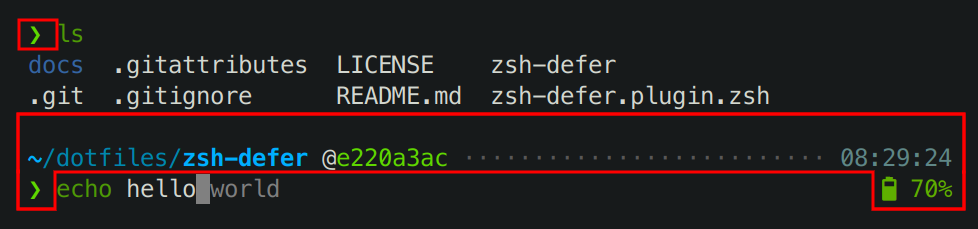
Everything within the highlighted areas on the screenshot is prompt. It is produced by Powerlevel10k. See Customizing prompt.
The listing of files produced by ls command is colored by ls itself. Different commands have
different ways of customizing their output, and even different version of ls have different flags
and environment variables related to colors. zsh4me enables colored output for common commands such
as ls and grep. For further customization consult documentation of the respective command.
echo hello is the current command being typed. Syntax highlighting for it is provided by
zsh-syntax-highlighting. See its homepage
for documentation on how to customize it.
After echo hello you can see world in grey. This is not a part of the command, so pressing
Enter will print only hello but not world. The latter is an autosuggestion provided
by zsh-autosuggestions that you can
accept in part or in full. It comes from command history and it's a
great productivity booster. See zsh-autosuggestions homepage for more information.
Last but not least, your terminal has a say about the appearance of everything that runs within it. The base colors, numbered from 0 to 15, can look differently in different terminals and even in the same terminal with different settings. Most modern terminals support themes, color palettes or color schemes that allow you to quickly change base colors. If colors in your terminal look unpleasant, try a different theme. Note that colors with codes above 15, as well as colors specified as RGB triplets, don't get affected by terminal themes. They look the same everywhere.
Additional Zsh startup files
When you start Zsh, it automatically sources ~/.zshenv and ~/.zshrc. The former bootstraps
zsh4me and holds the pins, the latter is your personal config. It is strongly recommended to keep
all shell customization and configuration (including exported environment variables such as PATH)
in ~/.zshrc or in files sourced from ~/.zshrc. If you are certain that you must export some
environment variables in ~/.zshenv, do it where indicated by comments.
Zsh supports several additional startup files with complex rules governing when each file is
sourced. The additional startup files are ~/.zprofile, ~/.zlogin and ~/.zlogout. Do not
create these files unless you are absolutely certain you need them.
Installing additional plugins
z4h install downloads a GitHub repository into $Z4H/owner/repo so that z4h source and
z4h load can use it after z4h init. Every repository must be pinned to a commit and a tree
hash:
zstyle ':z4h:install:ohmyzsh/ohmyzsh' treehash '<64-hex from tools/treehash --git <commit>>'
z4h install ohmyzsh/ohmyzsh@<40-hex commit> || return
The tarball is downloaded from https://github.com/owner/repo/archive/<commit>.tar.gz and
verified against the tree hash before it is installed. zstyle ':z4h:install:owner/repo' url <tarball-url> replaces that URL entirely: an https:// tarball whose archive holds exactly one
top-level directory, as git archive produces.
Without @<commit> or without the treehash zstyle, z4h install refuses. It prints the tree
hash of what it downloaded and how to review it:
git clone https://github.com/owner/repo
cd repo
git checkout <commit>
$Z4H/zsh4me/tools/treehash --git <commit>
Read the code at that commit before you pin it. The hash only guarantees that what runs is what you reviewed.
Updating
zsh4me never updates itself. To update, change the pins in ~/.zshenv:
Z4H_URL="https://g.xil.no/tb4/zsh4me"
Z4H_COMMIT="<40-hex commit>"
Z4H_TREEHASH="<64-hex tree hash>"
The maintainer produces this block for a release with tools/release COMMIT. Then run
z4h update, which reinstalls zsh4me and all packages from the current pins and restarts zsh. A
new shell picks up a changed Z4H_COMMIT on its own; z4h update additionally forces every
package to be reinstalled.
z4h verify re-checks the installed tree against Z4H_TREEHASH.
Plugins installed with z4h install are updated by changing their @<commit> and treehash
zstyle in ~/.zshrc. There is no update mechanism for ~/.zshrc itself.
Dotfiles and container images
Keep these files in your dotfiles repository:
~/.zshenv: the pins and the bootstrap. The pin block is the only thing that changes on update.~/.zshrc: your configuration.~/.p10k*.zsh: prompt configuration (there can be more than one).
With chezmoi these are dot_zshenv, dot_zshrc and dot_p10k.zsh. They contain no secrets and
no machine-specific paths, so plain files are enough; templating is not needed. On a new machine,
apply the dotfiles and start zsh: it bootstraps the pinned commit. See also
Backup and restore.
For container images:
Z4H_LOCAL_SOURCE=/path/to/exported-treemakes the bootstrap copy the tree from that directory instead of downloading it. The directory must hold an export ofZ4H_COMMIT(git archive <commit> | tar -x -C /path/to/exported-tree). The copy is verified againstZ4H_TREEHASHlike a download.GITSTATUS_AUTO_INSTALL=0stops powerlevel10k from downloadinggitstatusd.zstyle ':z4h:fzf' channel noneskipsfzf, orzstyle ':z4h:fzf' channel command <cmd>...installs it with your own command (for example from the distribution package). Without one of these,z4h initdownloads the pinnedfzfrelease binary.- The vendored plugins need no network. terminfo is opt-in and off by default.
With all three set, an image builds with no network access. Populate the cache at build time by
starting an interactive shell as the user who will use it, for example zsh -ic true; the
permission check requires the cache to be owned by that user and not writable by group or others.
Never run
z4h update in an image: it removes the installed packages and reinstalls the same pinned
content, which needs the sources again. Change the pins and rebuild instead.
Uninstalling
- Delete or replace
~/.zshenvand~/.zshrc. If you had these files prior to the installation of zsh4me and have replied in the affirmative when asked by the installer whether you want them backed up, you can find them in~/zsh-backup. - Restart your terminal. Restarting zsh is not enough.
- Delete the zsh4me cache:
rm -rf -- "${XDG_CACHE_HOME:-$HOME/.cache}/zsh4me/v5"
Further documentation
- tips.md: advanced configuration tips.
- CHANGES.md: differences from zsh4humans and migration notes.
- SECURITY.md: threat model, what is verified, reporting.
- docs/design.md: the specification.
- docs/maintenance.md: vendoring, lock file, releases, tests.
- docs/recovery.md: what to do when zsh4me fails to load.
- changelog.md: upstream changelog.